Purchase History
Restore purchases on a new device
On your new iPhone or iPad, sign in to the App Store with the Apple ID used for the original purchase. Open the App Store, tap your account avatar, go to “Purchased,” find Shadowrocket and tap the cloud-download icon. Depending on your system version, the list may appear under “Apps.” iPhone and iPad can share one purchase with the same Apple ID; once the app appears in purchases for that account, you do not need to pay again.
If you cannot find the app, first check whether you are searching the store homepage or the account’s purchase list. If the product page still shows a purchase button, do not confirm payment again yet. Check that “Media & Purchases” uses the original purchase account, then verify the store region and whether the listing is hidden. Signing in to the same iCloud account on a new device does not necessarily mean the App Store is using the same purchase account.
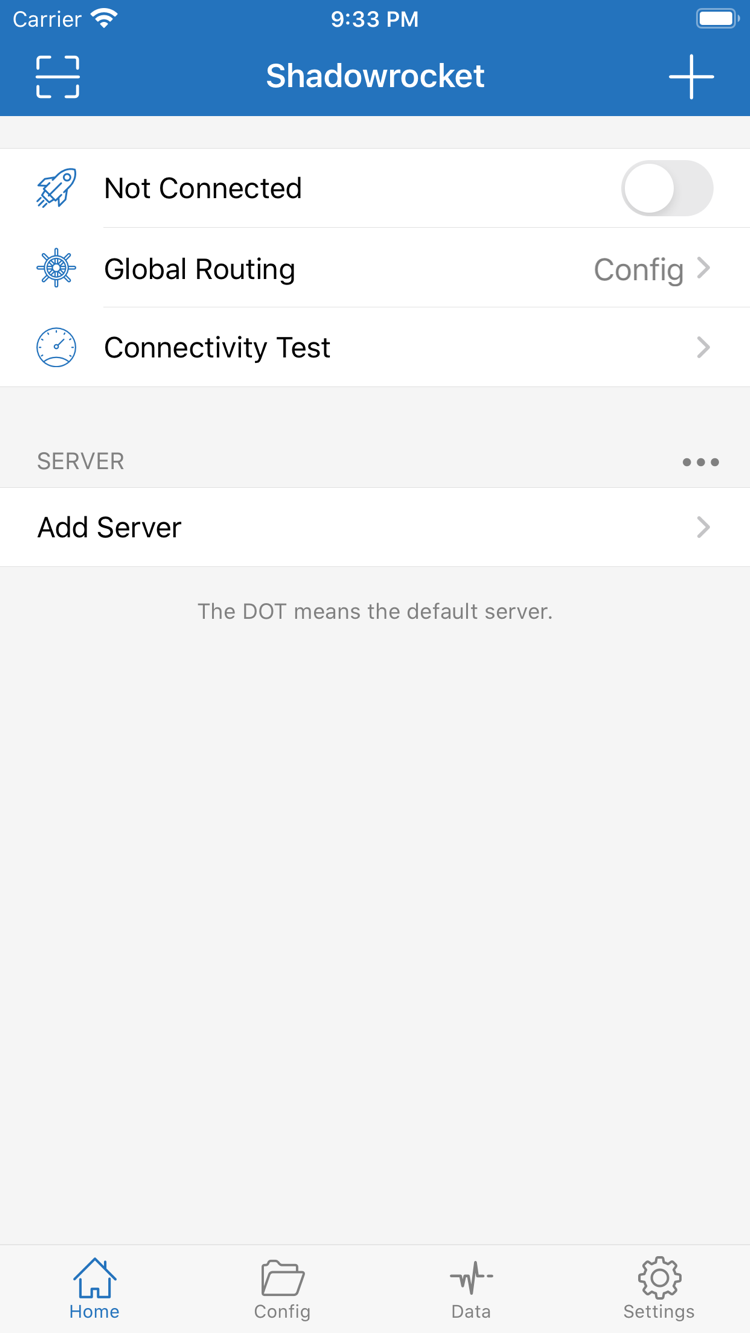
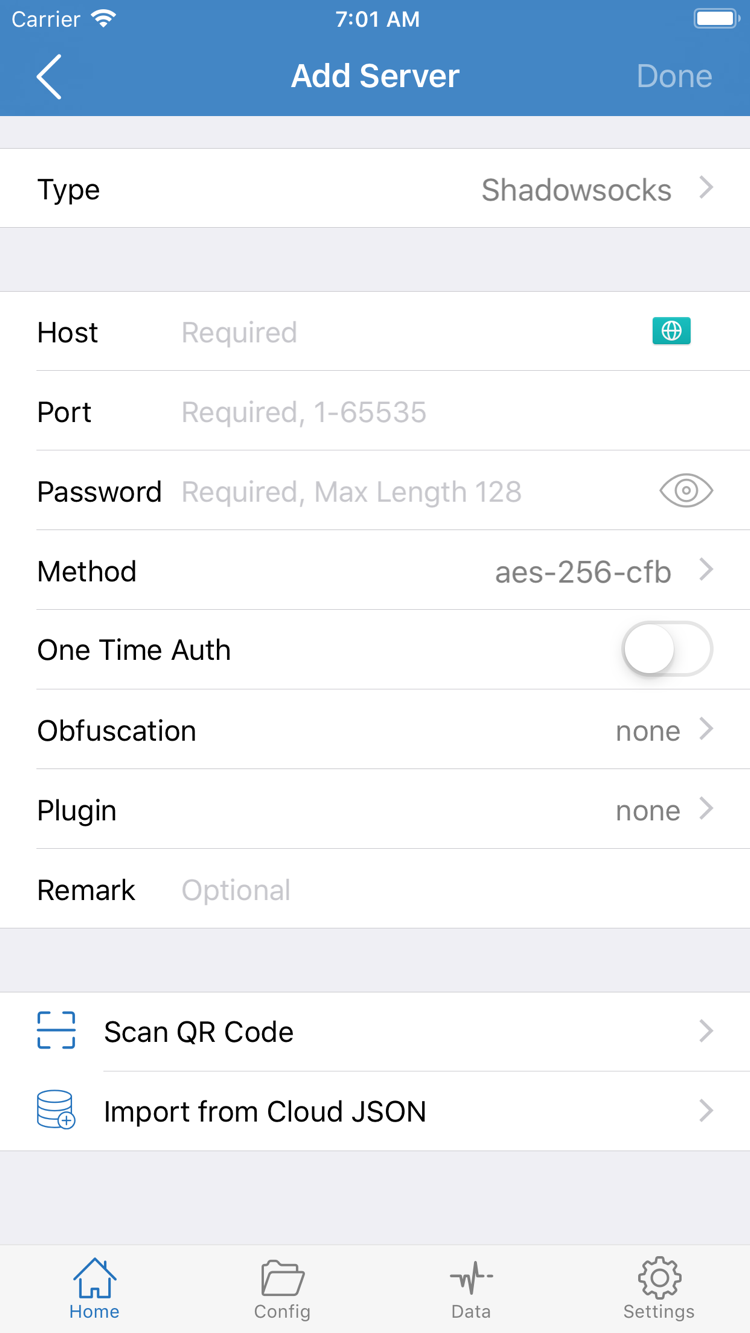
Restoring a purchase gets the client again; it does not recover local settings from your old device. Before switching devices, keep your existing subscription links, server details and any configurations you want to retain safe. After installing on the new device, import your own details again, then check Global Routing and the connection status. Do not include subscription links or passwords in public screenshots or support requests.
When switching Mac, Windows, Android or Linux devices, download the package again from the matching platform card on this site. The target device may have a different chip or distribution, so selecting a new package is more reliable than copying the old installer. iPhone / iPad app updates come through the App Store; for other platforms, use the package from this site that matches your target system.