Shadowrocket Official Manual

Shadowrocket Guide

Shadowrocket is a multi-platform client with rule-based routing. Get the app for your device, then import an existing subscription or enter server details.

Current version $2.99 one-time for iPhone / iPad; free on other platforms

Read the quick start guide

  • Global Routing
  • On Demand
  • Shadowsocks
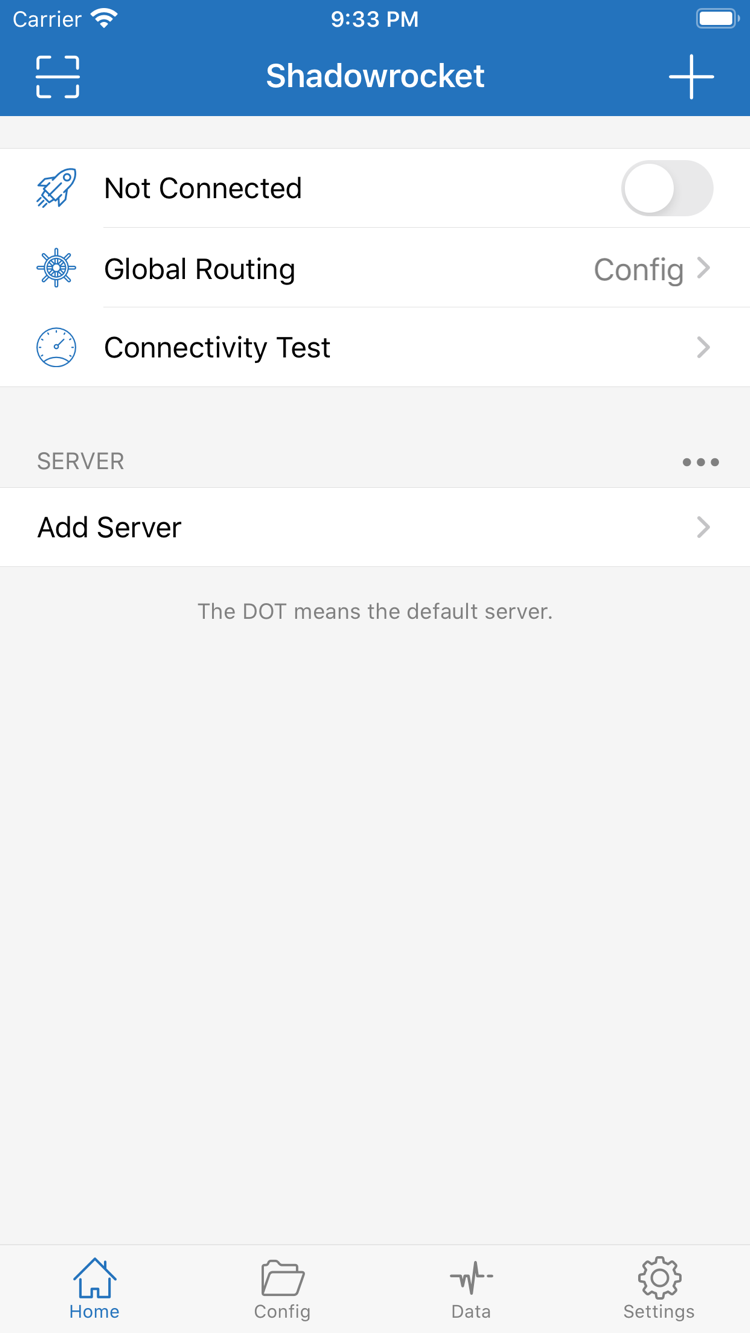
Shadowrocket Home screen with the connection switch and Global Routing settings

01 SETTINGS

Connection Modes and Configuration

Choose how requests should be routed, then check the server and rules. The examples below use the interface labels for iPhone / iPad and explain what each setting controls.

RULE

Rule-Based Routing

After connecting, set Global Routing to Config on Home. The client then checks rules in the current configuration from top to bottom. When a request matches the first applicable rule, it uses that rule's policy: send it through a proxy, connect directly, or reject the request. Put exceptions for specific domains before broader rules, and check FINAL at the end. After editing, test the same domain again. Exceptions placed after a catch-all rule often do not produce the expected result.

DOMAIN-SUFFIX,example.com,PROXY

See rule types and matching order

ON DEMAND

Connect Based on Network Conditions

Before enabling On Demand in Settings, confirm that a manually started connection works. Then configure the available Wi-Fi or cellular conditions for your device, switch networks once, and check the connection status on Home. On Demand controls when to attempt a connection; it does not determine which rule a request matches. To troubleshoot repeated reconnects, pause On Demand and test manually on the same network to determine whether the issue is with the trigger conditions or the server connection.

Settings → On Demand

See connection triggers and battery troubleshooting

PROTOCOL

Protocols and Server Parameters

If you have the details for an individual server, go to Add Server from Home. Choose the protocol specified in your connection details under Type, then enter Host, Port, and any other required parameters exactly as provided. Shadowsocks, VMess, and Trojan do not use identical fields. Do not apply a password, identifier, or encryption method from one protocol to another. Save the entry, select it, and test the connection. If it fails, first check that the protocol, address, and port are correct.

Add Server → Type

See the terminology for Shadowsocks, VMess, and Trojan.

SUBSCRIBE

Importing and Updating Existing Subscriptions

After obtaining an existing subscription URL from your service provider, choose Subscribe under Add Server, paste the full URL, and save. Once imported, return to Home and check the group and entries under SERVER, then test an entry. If the group has not updated, determine whether the subscription URL is unreachable or an individual server in the list cannot connect. Subscription URLs may contain access credentials. When asking for help, describe the step that failed rather than sharing the full URL.

Add Server → Subscribe

Import step by step and verify the connection

CONFIG FILE

Configuration Files, Sync, and Traffic Records

In Config, first check which file is in use, then edit its General or Rule section. Keep a restorable copy before editing and change one item at a time so you can compare results for the same request. On devices that support iCloud sync, check the configuration selected on each device after syncing; a file with the same name is not necessarily enabled. To see whether a test generated traffic, check the records in Data. Traffic figures can help with comparisons, but they cannot by themselves identify which rule matched.

[General] / [Rule]

See General and DNS settings

Global Routing: Choosing Between Three Modes

The same address may take a different route in each mode. To test, keep the device on the same network, choose one of the modes below, and use the same destination address.

Config routes each request according to the current file. Use it for everyday rule-based routing and to test newly added domain rules. If one address takes the wrong route, first confirm the current file and destination domain, then check whether an earlier, broader rule matched first.

If the problem appears only after switching networks, check the On Demand trigger conditions. If only one domain is affected, check its rule first. For more comparison steps, see connection troubleshooting.

02 DEVICES

Get Shadowrocket for Your Device

Get Shadowrocket for iPhone / iPad from the App Store for a one-time $2.99 purchase. The Mac (Apple silicon and Intel), Windows, Android, and Linux versions are free from this site's download page.

Desktop and Android installers are provided through this site's /dl/ path. If your browser detects a different system from the device you are preparing to install on—for example, if you use a phone to find an installer for another computer—select the correct platform directly. Do not rely on the first-screen recommendation to determine the chip or system architecture. If the first launch is blocked, check the package name and source, then follow the instructions for that system. Do not open files from unknown sources.

03 PURCHASE

Verify, Purchase, and Restore

Shadowrocket is a closed-source commercial app. The store listing, account purchase history, and configured server details are separate. Check each one independently when troubleshooting.

  • Developer Shadow Launch Technology Limited
  • App ID 932747118
See app verification steps

Check these three details on the store listing

On your iPhone or iPad, open Shadowrocket's App Store product page. First verify the developer, Shadow Launch Technology Limited, on the product page. Then check that the app icon matches the white icon with a blue-purple outline shown in this manual's header. Finally, verify the number 932747118 in the product URL. All three details should match. Relying only on a search result's title, icon color, or nickname can make it easy to mistake a different listing for the same app.

If the App Store opens a different listing, leave that listing, open the product page again, and recheck the developer and URL. Do not treat a screenshot of a web page introduction as store listing information. Check the App Store page for system requirements. When checking compatibility for another device, compare against that device's system information.

If you cannot find it, check the App Store storefront

Visibility depends on the storefront for the Apple Account used with the App Store, not the phone's display language. This listing is not shown in the mainland China storefront. If opening the product page shows that the item is unavailable in the current storefront, check the account's region rather than repeatedly searching for aliases. In system settings, go to Apple Account and then Media & Purchases to check the account's country or region. You can also check the signed-in account from the App Store account menu.

If the account used for iCloud differs from the one used for Media & Purchases, check the latter. Before changing your account's region, check your balance, active subscriptions, Family Sharing, and payment requirements for the new storefront. Changing the display language does not change the storefront or transfer old purchases to another account. See account and storefront region information.

First-time purchase and restoring a previous purchase

The iPhone / iPad version is available from the App Store for a one-time US price of $2.99. The Mac, Windows, Android, and Linux versions are free. Prices in other storefronts appear on their respective App Store pages. A purchase can be used by the same purchasing account on eligible iPhone and iPad devices; you do not need to buy it separately for these two device types.

When changing devices or reinstalling, sign in to the App Store with the Apple Account used for the original payment, find Shadowrocket in purchased items, and use the redownload option. If the page shows a purchase button, do not pay again right away. First check which account is signed in, then verify the purchase history and storefront. If the app has been reinstalled but the list is empty, the issue concerns restoring configuration or subscription details. Restoring a purchase restores access to the app; it does not restore server addresses. See steps to restore a previous purchase.

Purchasing the app does not include a server connection

A one-time app purchase is not a server plan. A purchase record confirms access to the app; it does not activate a proxy connection. This site does not provide, sell, or recommend nodes or subscriptions. After opening the app, if you already have your own subscription or server details, choose the appropriate option to import an existing subscription or manually add a server using its protocol. If you do not have those details yet, start with the interface guide. Do not enter an example domain as if it were a working server.

Keep these issues separate when troubleshooting. If the app opens but importing fails, first check that the address is complete. If the import succeeds and the server list is visible, check the selected entry and connection mode. Paying again will not fix an address, port, or rule error. When recording an issue, note the network type, current mode, and step that failed. Do not include a password or full subscription URL.

Choose the installer and update method for your system

Use the App Store update option for iPhone / iPad. Get Mac, Windows, Android, and Linux installers from this site's download page. When updating, confirm again that the chip or package format is appropriate for your device. In particular, do not assume a new computer has the same processor type as your previous one. Checking system information again is more reliable than reusing an old download choice.

Before updating or migrating, note the configuration file, connection mode, and subscription group in use, and save the configuration using a method supported by the device. After updating, test an address that worked before, then test an address for which you previously set an exception. This checks separately that the app runs, the server connects, and the rules still work. There is no need to reinstall the app, replace the configuration, and change servers all at once.
04 JOURNAL

Installation, Purchase, and Configuration Guides

Continue with the topic that matches your situation: check the system and chip before installing on desktop, check the storefront before purchasing, and check the active file and relevant fields when rules behave unexpectedly.

View all articles →